I upgraded from 6.1 to 7.04 (feisty fawn) last night. Everything went well but kinda slow. I started at 1230 am and didn't finish until 3:45 am. Compared to the initial install of 6.1 this seamed like a long time, but it was mostly flawless. I got a couple of pop-up messages telling me that a few pieces of software were no longer supported and Automatrix told me it was the wrong version now, but nothing I couldn't guess the answer to. I haven't noticed anything yet that is broken but I didn't see that much new either. This is my first Linux upgrade so I don't know what to expect. It said it had a fancier windows interface but when I turned it on it took away my minimize and maximize buttons.
After the three hour upgrade I was too tired to test it much, but I'll get into it soon and write about it here. I have NOT upgraded the laptop yet because one of my friends has been fighting 7.04's wireless support. I am using the laptop and don't consider it a test bed anymore so as soon as I put feisty fawn through it's paces on the test computer, I'll try it on the laptop.
p.s. I'm still working on the Pocket PC stuff
Sunday, April 22, 2007
Tuesday, March 20, 2007
How to sync your Pocket PC with Ubuntu
I have a Dell Axim Pocket PC and want to connect it to Ubuntu. Well here we go.
Connect your pocket PC to your Ubuntu machine using the serial to USB cable and power on the pocket PC.
Open a terminal (Applications -> Accessories -> Terminal).
Load the USB to serial driver by entering the following command in the terminal.
sudo modprobe ipaq
Issue the following command to make sure Ubuntu detects your pocket PC.
dmesg | tail
It showed /dev/ttyUSB0
as the device name. The next step is to install the packages we need. Enter the command as shown below:
sudo apt-get install synce-dccm synce-serial librra0-tools
This command will ask you to enter the IP addresses for your pocket PC, your DNS server etc. Enter the IP address of your router for the DNS server option (where you’ll get a blank field, whereas for other options, you’ll get a default value). It’s usually 192.168.0.1, but then it depends on the router. Leave the defaults for all other IPs.
Once the installation is complete, run the following command to specify the serial port:
sudo synce-serial-config /dev/ttyUSB0
You’ll get a message that
You can now run synce-serial-start to start a serial connection.
Make sure your pocket PC is connected and on. If your pocket PC is setup to sleep after certain minutes, you may have to switch it on again. Now start the dccm daemon.
You can start it in 2 ways.
dccm -d 4 -f
where -d 4 shows debugging is enabled and -f forces the daemon to run in the foreground.
Once you issue the above command, you’ll see the following in the terminal:
dccm[xxxx]: Running in foreground
dccm[xxxx]: Listening for connections on port xxxx
where xxxx stands for some number.
Now open another terminal and issue the following command:
sudo synce-serial-start
This will start the pocket PC synchronization. If you have firewall enabled, then you might see the warning as shown below:
Warning!
You have firewall rules that may prevent SynCE from working properly!
synce-serial-start is now waiting for your device to connect
In that case follow the firewall steps below. If you don’t have a firewall, then go to Continue after Firewall.
Firewall setting:
I user Firestarter as the firewall for front end. If you are using Firestarter, then go to /etc/firestarter/ directory. Change the file permission for user-pre to rw-r—– using the following command:
sudo chmod 640 user-pre
Now edit the file using
sudo gedit user-pre
Enter the following lines in the file:
$IPT -I FORWARD 1 -s 192.168.131.0/24 -d 192.168.131.0/24 -j ACCEPT
$IPT -I OUTPUT 1 -s 192.168.131.0/24 -d 192.168.131.0/24 -j ACCEPT
$IPT -I INPUT 1 -s 192.168.131.0/24 -d 192.168.131.0/24 -j ACCEPT
Save and close the file. Change the file permission back to r–r—– by issuing
sudo chmod 440 user-pre
The above change will work only if you had gone with the default IPs while installing the packages required for syncing.
Restart the computer and open two terminals. Issue the dccm command as given above in one terminal and sudo synce-serial-start on the other terminal. Make sure your Pocket PC is on before you do this.
Continue after firewall:
Once you issue the command sudo synce-serial-start in terminal 2, you’ll see the following messages (or similar messages) in terminal 1 where you issued the dccm command.
dccm[xxxx]: Connection from 192.168.xxx.xxx accepted
info package (88 bytes):
0000: 24 00 00 00 03 00 a3 2b $……+
0008: 11 0a 00 00 00 00 00 00 ……..
0010: 61 05 f3 56 00 00 00 00 a..V….
0018: 24 00 00 00 2c 00 00 00 $…,…
0020: 3e 00 00 00 50 00 50 00 >…P.P.
0028: 43 00 00 00 50 00 6f 00 C…P.o.
0030: 63 00 6b 00 65 00 74 00 c.k.e.t.
0038: 50 00 43 00 00 00 44 00 P.C…D.
0040: 65 00 6c 00 6c 00 20 00 e.l.l…
0048: 41 00 78 00 69 00 6d 00 A.x.i.m.
0050: 20 00 58 00 35 00 00 00 ..X.5…
0058:
dccm[xxxx]: Talking to ‘PPC’, a PocketPC device of type Dell Axim X5
This shows that the system is talking to the pocket PC. The next step is to setup a partnership. You are generally allowed upto 2 partnership. I have setup a partnership with my Windows machine and one more was remaining. I used that for syncing with Ubuntu.
Issue the following command in terminal 2 to establish the partnership:
synce-matchmaker create
You’ll get a message similar to the one shown below if you are able to establish the partnership.
[rra_matchmaker_create_partnership:xxx] Partnership file not found for ID XXXXXXXX
[rra_matchmaker_create_partnership:xxx] Partnership slot 2 is empty on device
Partnership creation succeeded. Using partnership index 2.
Once the partnership is established, then you can issue the following command to list the files in the pocket PC. You’ll get the list of files if the partnership is established.
synce-pls
Archive 5136 Sat 10 Feb 2007 05:04:15 PM CST House materials.psw
Archive 408 Sun 28 Jan 2007 11:10:28 AM CST Note2.pwi
Archive 408 Sun 24 Dec 2006 06:30:38 PM CST Note1.pwi
Directory Mon 31 Dec 2001 06:00:00 PM CST Business/
Directory Mon 31 Dec 2001 06:00:00 PM CST Personal/
Directory Mon 31 Dec 2001 06:00:00 PM CST Templates/
The above list is the list of folders in my pocket PC. Here is the list of command you can use to access the pocket PC files:
synce-pcp - Copy a file
synce-pmkdir - Create a directory
synce-pmv - Move a file
synce-prmdir - Delete a directory.
Once you are done syncing your pocket PC, issue the following command to kill the daemon and then disconnect the pocket PC.
killall -HUP dccm
That’s it. Next we figureout how to do somethinng usefull with this like sync with Evolved
Connect your pocket PC to your Ubuntu machine using the serial to USB cable and power on the pocket PC.
Open a terminal (Applications -> Accessories -> Terminal).
Load the USB to serial driver by entering the following command in the terminal.
sudo modprobe ipaq
Issue the following command to make sure Ubuntu detects your pocket PC.
dmesg | tail
It showed /dev/ttyUSB0
as the device name. The next step is to install the packages we need. Enter the command as shown below:
sudo apt-get install synce-dccm synce-serial librra0-tools
This command will ask you to enter the IP addresses for your pocket PC, your DNS server etc. Enter the IP address of your router for the DNS server option (where you’ll get a blank field, whereas for other options, you’ll get a default value). It’s usually 192.168.0.1, but then it depends on the router. Leave the defaults for all other IPs.
Once the installation is complete, run the following command to specify the serial port:
sudo synce-serial-config /dev/ttyUSB0
You’ll get a message that
You can now run synce-serial-start to start a serial connection.
Make sure your pocket PC is connected and on. If your pocket PC is setup to sleep after certain minutes, you may have to switch it on again. Now start the dccm daemon.
You can start it in 2 ways.
dccm -d 4 -f
where -d 4 shows debugging is enabled and -f forces the daemon to run in the foreground.
Once you issue the above command, you’ll see the following in the terminal:
dccm[xxxx]: Running in foreground
dccm[xxxx]: Listening for connections on port xxxx
where xxxx stands for some number.
Now open another terminal and issue the following command:
sudo synce-serial-start
This will start the pocket PC synchronization. If you have firewall enabled, then you might see the warning as shown below:
Warning!
You have firewall rules that may prevent SynCE from working properly!
synce-serial-start is now waiting for your device to connect
In that case follow the firewall steps below. If you don’t have a firewall, then go to Continue after Firewall.
Firewall setting:
I user Firestarter as the firewall for front end. If you are using Firestarter, then go to /etc/firestarter/ directory. Change the file permission for user-pre to rw-r—– using the following command:
sudo chmod 640 user-pre
Now edit the file using
sudo gedit user-pre
Enter the following lines in the file:
$IPT -I FORWARD 1 -s 192.168.131.0/24 -d 192.168.131.0/24 -j ACCEPT
$IPT -I OUTPUT 1 -s 192.168.131.0/24 -d 192.168.131.0/24 -j ACCEPT
$IPT -I INPUT 1 -s 192.168.131.0/24 -d 192.168.131.0/24 -j ACCEPT
Save and close the file. Change the file permission back to r–r—– by issuing
sudo chmod 440 user-pre
The above change will work only if you had gone with the default IPs while installing the packages required for syncing.
Restart the computer and open two terminals. Issue the dccm command as given above in one terminal and sudo synce-serial-start on the other terminal. Make sure your Pocket PC is on before you do this.
Continue after firewall:
Once you issue the command sudo synce-serial-start in terminal 2, you’ll see the following messages (or similar messages) in terminal 1 where you issued the dccm command.
dccm[xxxx]: Connection from 192.168.xxx.xxx accepted
info package (88 bytes):
0000: 24 00 00 00 03 00 a3 2b $……+
0008: 11 0a 00 00 00 00 00 00 ……..
0010: 61 05 f3 56 00 00 00 00 a..V….
0018: 24 00 00 00 2c 00 00 00 $…,…
0020: 3e 00 00 00 50 00 50 00 >…P.P.
0028: 43 00 00 00 50 00 6f 00 C…P.o.
0030: 63 00 6b 00 65 00 74 00 c.k.e.t.
0038: 50 00 43 00 00 00 44 00 P.C…D.
0040: 65 00 6c 00 6c 00 20 00 e.l.l…
0048: 41 00 78 00 69 00 6d 00 A.x.i.m.
0050: 20 00 58 00 35 00 00 00 ..X.5…
0058:
dccm[xxxx]: Talking to ‘PPC’, a PocketPC device of type Dell Axim X5
This shows that the system is talking to the pocket PC. The next step is to setup a partnership. You are generally allowed upto 2 partnership. I have setup a partnership with my Windows machine and one more was remaining. I used that for syncing with Ubuntu.
Issue the following command in terminal 2 to establish the partnership:
synce-matchmaker create
You’ll get a message similar to the one shown below if you are able to establish the partnership.
[rra_matchmaker_create_partnership:xxx] Partnership file not found for ID XXXXXXXX
[rra_matchmaker_create_partnership:xxx] Partnership slot 2 is empty on device
Partnership creation succeeded. Using partnership index 2.
Once the partnership is established, then you can issue the following command to list the files in the pocket PC. You’ll get the list of files if the partnership is established.
synce-pls
Archive 5136 Sat 10 Feb 2007 05:04:15 PM CST House materials.psw
Archive 408 Sun 28 Jan 2007 11:10:28 AM CST Note2.pwi
Archive 408 Sun 24 Dec 2006 06:30:38 PM CST Note1.pwi
Directory Mon 31 Dec 2001 06:00:00 PM CST Business/
Directory Mon 31 Dec 2001 06:00:00 PM CST Personal/
Directory Mon 31 Dec 2001 06:00:00 PM CST Templates/
The above list is the list of folders in my pocket PC. Here is the list of command you can use to access the pocket PC files:
synce-pcp - Copy a file
synce-pmkdir - Create a directory
synce-pmv - Move a file
synce-prmdir - Delete a directory.
Once you are done syncing your pocket PC, issue the following command to kill the daemon and then disconnect the pocket PC.
killall -HUP dccm
That’s it. Next we figureout how to do somethinng usefull with this like sync with Evolved


Sunday, January 21, 2007
PhotoShop CS2 On Ubuntu Sorta
I own Photoshop CS2 and have it installed on a Windows XP Laptop. This is the only computer I have it on. I don't think I am violating any copy rights as long as I don't run photoshop on the laptop at the same time I run it on the Ubuntu Box.
I've been trying to get Photoshop CS2 to run on Ubuntu. I have had limited success. Here's what I've done so far;
1. I've installed WINE and it's working fine.
2. I copied my entire Adobe Directory from the MS Windows XP Laptop to a Flash Drive (950mbs)(c:\program files\adobe)
3. I've EXPORTED the "HKEY_LOCAL_MACHINE/Software/Adobe/" Registery Key from the MS Window Machine to a file call adobe.reg (on the windows machine run REGEDIT navigate to the above key, select it, and then chose FILE/EXPORT it will asked for a name I used ADOBE)
4. I copied this new file (adobe.reg) to the flash drive.
5. I copied all the Adobe files from the flash drive (from c:\program files\adobe) to my Ubuntu Box and put them in the home\USERNAME\.wine\dirve_c\Program Files\Adobe\ driecroty
6. I then copied the adobe.reg file to the same directory
7. I then started TERMINAL and navigated to home\USERNAME\.wine\dirve_c\Program Files\Adobe\
8. I then ran wine regedit adobe.reg to import the registry settings into WINE.
9. I then navigated to the home\USERNAME\.wine\dirve_c\Program Files\Adobe\Adobe Photoshop CS2\ directory and ran wine Photoshop.exe command in TERMINAL
It took about 2 to 3 minutes but Photoshop CS2 started but gave an error saying that the serial number or activation code was wrong. (The start time is long. I thought it had locked up)
10. Well I started searching on Google and found several links to instructions to make Photoshop CS2 run on a flash drive (I searched for Portable Photoshop CS2) I followed these instructions and made a working Portable Photoshop CS2. This worked just fine on any MS Windows Machine that I had Administrator Rights on.
11. I created another directory on my Ubuntu Box in the following location home\USERNAME\.wine\dirve_c\Program Files\PS\ I then copied my Portable Photoshop CS2 directory from my flash drive to this new directory on the Ubuntu Box. I navigated to it and run the following command in a TERMINAL wine Portable_Photoshop.exe .
It worked!! Everything was good but the problem I'm having is that if you touch the keyboard you get an error saying "requested library not loaded" or something like it and everything stops. This might be something I've done wrong with my WINE installation.
Oh, Well, it's a start. Anyone who has any suggestions please post them here.
I've been trying to get Photoshop CS2 to run on Ubuntu. I have had limited success. Here's what I've done so far;
1. I've installed WINE and it's working fine.
2. I copied my entire Adobe Directory from the MS Windows XP Laptop to a Flash Drive (950mbs)(c:\program files\adobe)
3. I've EXPORTED the "HKEY_LOCAL_MACHINE/Software/Adobe/" Registery Key from the MS Window Machine to a file call adobe.reg (on the windows machine run REGEDIT navigate to the above key, select it, and then chose FILE/EXPORT it will asked for a name I used ADOBE)
4. I copied this new file (adobe.reg) to the flash drive.
5. I copied all the Adobe files from the flash drive (from c:\program files\adobe) to my Ubuntu Box and put them in the home\USERNAME\.wine\dirve_c\Program Files\Adobe\ driecroty
6. I then copied the adobe.reg file to the same directory
7. I then started TERMINAL and navigated to home\USERNAME\.wine\dirve_c\Program Files\Adobe\
8. I then ran wine regedit adobe.reg to import the registry settings into WINE.
9. I then navigated to the home\USERNAME\.wine\dirve_c\Program Files\Adobe\Adobe Photoshop CS2\ directory and ran wine Photoshop.exe command in TERMINAL
It took about 2 to 3 minutes but Photoshop CS2 started but gave an error saying that the serial number or activation code was wrong. (The start time is long. I thought it had locked up)
10. Well I started searching on Google and found several links to instructions to make Photoshop CS2 run on a flash drive (I searched for Portable Photoshop CS2) I followed these instructions and made a working Portable Photoshop CS2. This worked just fine on any MS Windows Machine that I had Administrator Rights on.
11. I created another directory on my Ubuntu Box in the following location home\USERNAME\.wine\dirve_c\Program Files\PS\ I then copied my Portable Photoshop CS2 directory from my flash drive to this new directory on the Ubuntu Box. I navigated to it and run the following command in a TERMINAL wine Portable_Photoshop.exe .
It worked!! Everything was good but the problem I'm having is that if you touch the keyboard you get an error saying "requested library not loaded" or something like it and everything stops. This might be something I've done wrong with my WINE installation.
Oh, Well, it's a start. Anyone who has any suggestions please post them here.
Saturday, December 30, 2006
A Blog For Fun
I know I promised a "How To" on building a DVR computer and I am going to do that (I'm rounding up the parts now) But I got bored and while archiving my photos and reading my friends personal Blogs I decided to do a personal one too. I wanted something different so I decided on a photo blog with a bit of a theme. I will be uploading some of the photos I took as I traveled my state. So please visit it until I get the goods together for the DVR.
Oh! The site name and address? WVpictures.blogspot.com
Oh! The site name and address? WVpictures.blogspot.com
Thursday, December 21, 2006
Extending This Project
I have acquired a Mni Atx motherboard (1ghz cpu firewire/usb2/sound/video etc.) Its only 6 inches square. I have a tv tuner/video capture card too. I think I'm going to build a media PC. I think I will try FREEVO on it. This will be both a hardware and software project along with a little modding. (I might try to stuff it all inside an old VCR for media conversion).
I think this will be an interesting and useful how to project. I should be able to document it with photo's and maybe a little video just for something different.
As soon as I have all the part together I will start the project. I think since FREEVO is a Linux program it will fit in here on this Blog. I will need to find a Linux Distro that works with the motherboard I have since everything is on board except the capture card. I hope this won't be a problem but we will see.
I'll probably start the project after Christmas (I have the week off)
I think this will be an interesting and useful how to project. I should be able to document it with photo's and maybe a little video just for something different.
As soon as I have all the part together I will start the project. I think since FREEVO is a Linux program it will fit in here on this Blog. I will need to find a Linux Distro that works with the motherboard I have since everything is on board except the capture card. I hope this won't be a problem but we will see.
I'll probably start the project after Christmas (I have the week off)
Thursday, December 07, 2006
READ FROM THE BOTTOM UP
This Blog reads from the bottom up. I change the look a little and turned archiving back on.
Saturday, December 02, 2006
The End?
It's been thirty days (I had a few late work days so the math is a little fuzzy) and this is my first time back on a MS Windows machine. Lets talk about what I've learned and done with Ubuntu 6.1 Linux. I installed it on two computers, a desktop and a laptop. I managed to get 95% of all my hardware working on both machines but it was a fight (more later). The only real problem I had was with a scanner and these are cheap enough to replace.
My over all opinion of Linux was good, not great, not wow, but good. The good things that stick out to me were the application add/remove programs with the Internet updates, the highly customizable desktop, and the nice way Linux handles multiple users. The bad I remember was the command line and the way Linux felt like MS Windows 98 (Windows over DOS). It felt like I was working on two different OS's, one a pretty point and click windows system and the other an ugly command line back end. Ubuntu Linux makes me think of “The Wizard of Oz”, “Ignore the man behind the curtains, I am the great and powerful Oz”, Ubuntu puts a pretty face (windows) on the ugly truth (command line).
I found almost all the applications that I was looking for except a good graphics editor. There is no Photoshop equal in the Linux world (or the mac or windows world either). GIMP is ok but it is not Photoshop. Firefox rules, OpenOffice is great, Evolution was outstanding and Rythmbox did everything I asked it too. I ripped CD/DVD's and burnt them back. I converted the audio/video files to different formats. I edited the imported video, I did work (word processing, spread sheets, ect) with easy. I kept up on my podcasts and moved things around with flash drives. I accessed MS Windows network shares, connected the two Linux machines through Linux shares, and remote desktoped everything to and from everything else. It was a good experience and I enjoyed myself.
The sad thing is my worse experience was with the "old guard" Linux Users. Not newbies or general users, it was the "founders". Their “totally free or not at all” attitude is holding Linux back to the point where the community will not grow, and when new users do show up asking why it can't be easier, we're greeted with “you don't matter, your just a stupid newbie”. If you ask a question from one of these “zealots” you are berated for not knowing the answer and told to figure it out yourself or switch back to MS Windows because the Linux Community doesn't need or want you. I came very close to just giving up because of this. I had trouble with graphic drivers and wireless networking because these “zealots” don't thing you should use non-open source drivers even if they are better, free, and gets your hardware to work. They are perfectly happy forcing their moral choices onto you even if it means that Linux stays stuck in the 1990's.
The biggest question is “Will I keep Ubuntu Linux on the Laptop”? The answer is a simple “yes”. Will I remove MS Windows from any of my other personal computers? No. Would I recommend Linux to be installed on any or all of my work machine? No.
As it stands right now, Linux is a nice “hobby” OS but is not universal enough for the business workstation, until something is done with the “zealots” who sacrifice functionality and compatibility for personal moral choices Linux will remain the THIRD OS behind Microsoft and Apple and be treated as a geeky elitist hobby OS .
There is some hope, on one of the news groups, I notice that Ubuntu in their next release will be including the non-open source graphic drivers. I think this will help attract new users and that will be good for Linux.
Anyone who is on this page trying to get MEDIA (mp3, wma, divx, ect.) or GRAPHICS CARDS to work, visit the link on my menu to the right labeled "WHAT UBUNTU LEFT OUT"
For all those who helped me and gave me advice, I would like to say "thank you" and to those "old guard zealots" I hope you "bend" just a little and get the community growing because without you there would be no Linux. It's been fun, I enjoyed the challenge and I now count myself as a new full fledge Linux user.
Written November 30, 2006.
Tuesday, November 28, 2006
Solved the Stutter Problem
Remember when I told you about how I had a one second delay when opening new windows, with Ubunutu 6.1 Linux? When you would open a new window it would make the mouse lock up and cause the sound to stutter. After a second or two all would be well again until you opened any other dialog box or window. Well I figured it would be some power saving feature causing this because I using a 1.2 ghz PIII laptop with 512mbs of ram and a 40ghz 5400rpm hard drive. It shouldn't stutter.
My first thought was with the 5200 Nvidia ToGo graphics card slowing down (heat and power protection). I looked all through Ubuntu settings and turned all the power saving features off. That didn't help. My second thought was a BOIS setting. I went into BIOS and made sure all the power saving features were off there too. Still no help. I did notice an INTEL SPEED STEPPING setting but it was set to max performance. On a whim I disabled it. MAGIC !!! No more stutter.
Ok so what did I loose by turning this off? Well speed stepping lets the computer slow the processor down based on what you are doing. i.e. If you looking at web pages and are spending lots of time reading them and not changing pages much, speed step, would slow your processor down to help save batter power and cool the computer. Mine was taking my processor from 1.2 ghz down to 550 mhz. Man, what a hit! So as I was just reading stuff on the screen the cpu would slow down and when it had to go to the graphics card (opening or drawing another window) it would "stutter" while it kicked the processor back up to full speed. With this "feature" turned off the problems goes away. I will get less up time on my battery and my laptop will run a little hotter. I will monitor these "disadvantages" and report them later. Right now the trade off is well worth it to me and to compensate, since this is a brand new bulb in this laptop screen (I put it in) I turned its brightness down by half. That should help with the power some.
This is the last major problem that I was having with Ubuntu 6.1 Linux on the laptop. This weekend I have to move the desktop linux box back to MS Windows (the box is not mine and the owner wants MS windows). It is nice to know that I will be able to keep a Linux box after the experiment. The other nice thing that is nice, with all the removable media working I can easily move data from the desktop to the laptop.
I thought about duel booting the laptop but I came up with another solution. Someone I know has a similar dell 8100 laptop that was almost totally destroyed (don't ask how). One of the few surviving parts is the hard drive enclosure (the drive died though, odd). I think I will take the old 30gb hard drive that was originally in this machine which still has a valid working MS XP Home addition installed on it with MS Office 2002 pro, and mount it in the salvaged hard drive enclosure and make the hard drives switchable. Just a thought.
There is a 3.5 inch floppy drive in here too, wonder if I can replace it with a second hard drive? More reading.
Most of the rest of this blogs posts will be coming from a now "FULLY FUNCTIONING" Dell 8100 Ubuntu 6.1 Linux Laptop. My next project might be on "How to Pimp Out Your Laptop" I think I will break this one down and do a cool Linux paint job on it. Maybe even talk RycheRox into doing some custom graphics for me... hint, hint...nudge, nudge...know what I mean?, know what I mean?...A winks as good as a nod.
My first thought was with the 5200 Nvidia ToGo graphics card slowing down (heat and power protection). I looked all through Ubuntu settings and turned all the power saving features off. That didn't help. My second thought was a BOIS setting. I went into BIOS and made sure all the power saving features were off there too. Still no help. I did notice an INTEL SPEED STEPPING setting but it was set to max performance. On a whim I disabled it. MAGIC !!! No more stutter.
Ok so what did I loose by turning this off? Well speed stepping lets the computer slow the processor down based on what you are doing. i.e. If you looking at web pages and are spending lots of time reading them and not changing pages much, speed step, would slow your processor down to help save batter power and cool the computer. Mine was taking my processor from 1.2 ghz down to 550 mhz. Man, what a hit! So as I was just reading stuff on the screen the cpu would slow down and when it had to go to the graphics card (opening or drawing another window) it would "stutter" while it kicked the processor back up to full speed. With this "feature" turned off the problems goes away. I will get less up time on my battery and my laptop will run a little hotter. I will monitor these "disadvantages" and report them later. Right now the trade off is well worth it to me and to compensate, since this is a brand new bulb in this laptop screen (I put it in) I turned its brightness down by half. That should help with the power some.
This is the last major problem that I was having with Ubuntu 6.1 Linux on the laptop. This weekend I have to move the desktop linux box back to MS Windows (the box is not mine and the owner wants MS windows). It is nice to know that I will be able to keep a Linux box after the experiment. The other nice thing that is nice, with all the removable media working I can easily move data from the desktop to the laptop.
I thought about duel booting the laptop but I came up with another solution. Someone I know has a similar dell 8100 laptop that was almost totally destroyed (don't ask how). One of the few surviving parts is the hard drive enclosure (the drive died though, odd). I think I will take the old 30gb hard drive that was originally in this machine which still has a valid working MS XP Home addition installed on it with MS Office 2002 pro, and mount it in the salvaged hard drive enclosure and make the hard drives switchable. Just a thought.
There is a 3.5 inch floppy drive in here too, wonder if I can replace it with a second hard drive? More reading.
Most of the rest of this blogs posts will be coming from a now "FULLY FUNCTIONING" Dell 8100 Ubuntu 6.1 Linux Laptop. My next project might be on "How to Pimp Out Your Laptop" I think I will break this one down and do a cool Linux paint job on it. Maybe even talk RycheRox into doing some custom graphics for me... hint, hint...nudge, nudge...know what I mean?, know what I mean?...A winks as good as a nod.
Sunday, November 26, 2006
The definition of FREE by Ubuntu
The definition of FREE by Ubuntu. While trying to figure out how to make my Wireless work I ran into a few threads of discussions about DRIVERS that are given away at no cost (freeware) but are not open source (the company that made the drivers won't tell you how they made them). Several people were mad and were going to stop using Ubuntu because Ubuntu was going to use theses freeware driver from Nvidia and ATI drivers in their next release. Theses drivers are given away free by both companies but they are not open source.
In a move that reminds me of Microsoft, these Open Source Zealots brand these drivers as "NON FREE". The Zealots admit that the drivers work and are even better then the drivers that are Open Source but they claim that these drivers should not be used because the company that made them will not tell them how they made them. This is clearly a case of the Zealots trying to confuse people into thinking that by using the good working drivers provided for free from these companies that you are stealing or betraying Linux.
Don't get me wrong, I understand that non open source software has some problems (Quicken changes ever 2 years, making you upgrade or lose function), but when it comes to hardware drivers, who cares as long as they work. Who is more qualified to make the piece of software that communicates between your graphic card and you system? The company that made the graphics card or some zealot that has a "it works good enough for me" attitude.
After spending hours reading about the "NON FREE" vs "Open Source" crap, I learned that ever problem that I encountered up to this point could have been prevented if UBUNTU would have used "NON FREE" freeware drivers and codecs. (See how stupid "non free" freeware sounds)
If the Linux community wants Linux to succeeded they are going to have to give a little, companies spend millions of dollars developing the hardware and they have a right not to share that expensive work with you. They are providing you with FREE drivers to get it working and if they stop then you are sitting on a dead end road with last years hardware. You will always be behind, and never attract the critical mass of users that you need to get the big companies to pay attention to you and open up those drivers.
In a move that reminds me of Microsoft, these Open Source Zealots brand these drivers as "NON FREE". The Zealots admit that the drivers work and are even better then the drivers that are Open Source but they claim that these drivers should not be used because the company that made them will not tell them how they made them. This is clearly a case of the Zealots trying to confuse people into thinking that by using the good working drivers provided for free from these companies that you are stealing or betraying Linux.
Don't get me wrong, I understand that non open source software has some problems (Quicken changes ever 2 years, making you upgrade or lose function), but when it comes to hardware drivers, who cares as long as they work. Who is more qualified to make the piece of software that communicates between your graphic card and you system? The company that made the graphics card or some zealot that has a "it works good enough for me" attitude.
After spending hours reading about the "NON FREE" vs "Open Source" crap, I learned that ever problem that I encountered up to this point could have been prevented if UBUNTU would have used "NON FREE" freeware drivers and codecs. (See how stupid "non free" freeware sounds)
If the Linux community wants Linux to succeeded they are going to have to give a little, companies spend millions of dollars developing the hardware and they have a right not to share that expensive work with you. They are providing you with FREE drivers to get it working and if they stop then you are sitting on a dead end road with last years hardware. You will always be behind, and never attract the critical mass of users that you need to get the big companies to pay attention to you and open up those drivers.
Saturday, November 25, 2006
Progress To Date
 Since wireless is working on the laptop, I have been able to test Linux to Linux networking, remote desktop, mounted shares, and learned a little about firewalls. I only have 6 days left on this experiment and with networking just coming into play it's going to be tight. I got luck in November and had about 6 work days off but none next week.
Remote desktop works just like it does on MS Windows. The only thing that I have noticed is that I have to use the IP address of the target machine instead of its name. This might just be a delay of the way that Linux networks. I remember the MS Windows 98 days of having to wait 5 to 10 minutes before machines "saw" one another.
To use Remote Desktop you have to ALLOW it on your machine. SYSTEM/PREFERENCES/REMOTE DESKTOP will get you to the ENABLE REMOTE DESKTOP there are just four check blocks here and a text entry box.
- Allow other users to view your desktop
- Allow other users to control your desktop
- Ask you for confirmation
- Require the user to enter a password
- (text box for that password)
 I then went to the laptop and RIGHT clicked on my PANEL and selected ADD. I then choose TERMINAL SERVER CLIENT APPLET. It appeared on my PANEL. I clicked on it and got the familiar TERMINAL SERVER CLIENT window (see photo).
I tried to just type the computers name but that did not work, so I tried the remotes IP address (TERMINAL then type IP ADDR on the remote to get this). That worked but I had to change the PROTOCOL to VNC. I was then asked for the password I set earlier. I enter it and the remote machines desktop appeared in a window before me. I moved my mouse, it's cursor moved, I click on a program, the remote machine started that program. Very nice. You can even transmit sound from one to the other. There are a lot of settings here to play with but this is bulk of it.
When I first tried to connect to the remote system it failed and would not work no mater what I did. I then remembered the firewall. I turned it off and everything worked fine. I read more about the firewall program and VNC and punched a hole in the firewall for VNC and all was well.
WIRELESS working on the LAPTOP!!!!!!
I've done it! I got mad at Ubuntu 6.1 and refused to allow it to beat me. I went to my laptop and decided that I would either get Wireless working on it or Ubuntu 6.1 was leaving this laptop for good. I have spent about 5 hours reading and internet hunting to figure this out. As I read I reliazed that Ubuntu 6.1 did not work with BCM (Broadcom Chip Set) chip set which includes LINKSYS and DELL built-in wireless card. Now I could understand missing a few off brands, but DELL built-ins and Linksys are the two most common out there. Ok, enough of the rant, how did I do it?
I installed a MICROSOFT WINDOWS DRIVER, let me say that again, I used a driver designed for MICROSOFT WINDOWS. In addition I had to downgrade my Ubuntu install to use something called ndiswrapper. This method is not mine, I have just compiled it here from various news groups for your easy use:
HOW TO INSTALL A MOTOROLA WN825G WIRELESS CARD ON UBUNTU 6.1 LINUX
HOW TO READ THIS
1. STEP - Wait until your computer completes each STEP until you go to the next.
2. commands - these will be in red and this is exactly what you type in a TERMINAL window.
3. adding text to text to files - some of these commands open a file in a text editor. What you type will be in blue. After you typed in your text make sure to SAVE the file.
4. programs - that run in the windows envirmont (no command line needed).
--------------------------------------
STEP 0 start a TERMINAL windows (application / Accessories / TERMINAL)
STEP 1 (downgrade) unload the bcm43xx module.
sudo rmmod bcm43xx
STEP 2 add it to modprobe.d's blacklist to ensure that it is never loaded again, even by accident.
sudo gedit /etc/modprobe.d/blacklist
This opens a text editor, at the bottom of the file that is opened type the following then save it
blacklist bcm43xx
STEP 3 install the ndiswrapper-utils package.
sudo apt-get install ndiswrapper-utils
STEP 4 change the ID for your wireless nic to wlan0 from the default eth1.
sudo gedit /etc/iftab
This opens a text editor you change "eth1" to "wlan0" in this file and save it.
STEP 5 restart the network.
sudo /etc/init.d/networking restart
STEP 6 get your MICROSOFT WINDOWS DRIVERS for your wireless card.
Mine is a Motorola WN 825G and was found here
Motorola WN54G Drivers
STEP 7 extract your MICROSOFT WINDOWS DRIVERS and put them someplace you can find again.
I put mine HOME\DOWNLOADS\DRIVERS\WIRELESS
NOTE: if your driver is like mine you will have to extract the file on a MS Windows machine and then copy the files to your linux box or burn them to a CD. I cheated and renamed my WN-WPCI-Web-Update-v1.1.exe file to WIRELESSDRIVER.ZIP then used the Linux Archive Manager to extract it.
In the end you are looking for a file called bcmw15a.inf. I assume other .inf files for other cards will work the same way just change the name.
STEP 8 change to the directory where your .inf file is located.
cd DOWNLOADS
cd DRIVERS
cd WIRELESS
STEP 9 creates the driver wrapper.
sudo ndiswrapper -i bcmwl5a.inf
STEP 10 create the module in /ect/modutils.d.
sudo ndiswrapper -m
Step 11 move the module.
sudo cp /etc/modprobe.d/ndiswrapper /etc/modutils/
Step 12 update the module.
sudo update-modules
STEP 13 restarts your network.
sudo /etc/init.d/networking restart
-------------------------------------------------
Ok that should be it if you do not have WEP enabled. I have WEP enable ...sigh... But I did see that my wireless cards lights were on. I remember what my friend El Gee told me he used to help him, WIFI RADAR. I downloaded and installed WIFI RADAR (add/remove applications) I ran it and it saw my wireless network !!!!
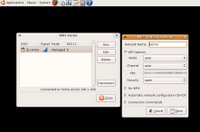 I then disconnected my WIRED Lan line and rebooted becuase I'm a MS Windows person and have to reboot all the time and besides it doesn't hurt anything. After the boot I ran WIFI RADAR and selected my WIRELESS NETWORK (home) and then clicked connect. It told me there was no configuration file for (home) and asked if I'd like to create one. I said YES and was presented with a standard WIRELESS config setup. (SEE Photo) it wanted MODE, CHANNEL, KEY, SECURITY. I set MODE and CHANNEL to AUTO, entered my 26 digit wep KEY, and selected OPEN for SECURITY. There was a small delay and then I was CONNECTED with WEP!!!!
You will notice in the screen shot it says I'm connected in the B mode (11mbs) hmm... this is a G card (54 mbs) ... At least I have wireless on the laptop.
IMPROVING THIS GUIDE
I'm sure there is a command line to configure the WIRELESS card (MODE, CHANNEL, KEY, SECURITY) but I couldn't find it and the WIFI RADAR program has other uses too and is worth getting.
NOTES
1) gets help with the ndiswrapper command
ndiswrapper --help
2) to run WIFI RADAR you have to enter your password like any sudo command.
3) This is not my work. Other people smarter then me figured this out. I just put all the small pieces together in one place in a step by step guide. Some of the steps take a few seconds to complete and will display lots of information in the TERMINAL window. I read it and understood some of it but it did not impact what I did.
I installed a MICROSOFT WINDOWS DRIVER, let me say that again, I used a driver designed for MICROSOFT WINDOWS. In addition I had to downgrade my Ubuntu install to use something called ndiswrapper. This method is not mine, I have just compiled it here from various news groups for your easy use:
HOW TO INSTALL A MOTOROLA WN825G WIRELESS CARD ON UBUNTU 6.1 LINUX
HOW TO READ THIS
1. STEP - Wait until your computer completes each STEP until you go to the next.
2. commands - these will be in red and this is exactly what you type in a TERMINAL window.
3. adding text to text to files - some of these commands open a file in a text editor. What you type will be in blue. After you typed in your text make sure to SAVE the file.
4. programs - that run in the windows envirmont (no command line needed).
--------------------------------------
STEP 0 start a TERMINAL windows (application / Accessories / TERMINAL)
STEP 1 (downgrade) unload the bcm43xx module.
sudo rmmod bcm43xx
STEP 2 add it to modprobe.d's blacklist to ensure that it is never loaded again, even by accident.
sudo gedit /etc/modprobe.d/blacklist
This opens a text editor, at the bottom of the file that is opened type the following then save it
blacklist bcm43xx
STEP 3 install the ndiswrapper-utils package.
sudo apt-get install ndiswrapper-utils
STEP 4 change the ID for your wireless nic to wlan0 from the default eth1.
sudo gedit /etc/iftab
This opens a text editor you change "eth1" to "wlan0" in this file and save it.
STEP 5 restart the network.
sudo /etc/init.d/networking restart
STEP 6 get your MICROSOFT WINDOWS DRIVERS for your wireless card.
Mine is a Motorola WN 825G and was found here
Motorola WN54G Drivers
STEP 7 extract your MICROSOFT WINDOWS DRIVERS and put them someplace you can find again.
I put mine HOME\DOWNLOADS\DRIVERS\WIRELESS
NOTE: if your driver is like mine you will have to extract the file on a MS Windows machine and then copy the files to your linux box or burn them to a CD. I cheated and renamed my WN-WPCI-Web-Update-v1.1.exe file to WIRELESSDRIVER.ZIP then used the Linux Archive Manager to extract it.
In the end you are looking for a file called bcmw15a.inf. I assume other .inf files for other cards will work the same way just change the name.
STEP 8 change to the directory where your .inf file is located.
cd DOWNLOADS
cd DRIVERS
cd WIRELESS
STEP 9 creates the driver wrapper.
sudo ndiswrapper -i bcmwl5a.inf
STEP 10 create the module in /ect/modutils.d.
sudo ndiswrapper -m
Step 11 move the module.
sudo cp /etc/modprobe.d/ndiswrapper /etc/modutils/
Step 12 update the module.
sudo update-modules
STEP 13 restarts your network.
sudo /etc/init.d/networking restart
-------------------------------------------------
Ok that should be it if you do not have WEP enabled. I have WEP enable ...sigh... But I did see that my wireless cards lights were on. I remember what my friend El Gee told me he used to help him, WIFI RADAR. I downloaded and installed WIFI RADAR (add/remove applications) I ran it and it saw my wireless network !!!!
 I then disconnected my WIRED Lan line and rebooted becuase I'm a MS Windows person and have to reboot all the time and besides it doesn't hurt anything. After the boot I ran WIFI RADAR and selected my WIRELESS NETWORK (home) and then clicked connect. It told me there was no configuration file for (home) and asked if I'd like to create one. I said YES and was presented with a standard WIRELESS config setup. (SEE Photo) it wanted MODE, CHANNEL, KEY, SECURITY. I set MODE and CHANNEL to AUTO, entered my 26 digit wep KEY, and selected OPEN for SECURITY. There was a small delay and then I was CONNECTED with WEP!!!!
You will notice in the screen shot it says I'm connected in the B mode (11mbs) hmm... this is a G card (54 mbs) ... At least I have wireless on the laptop.
IMPROVING THIS GUIDE
I'm sure there is a command line to configure the WIRELESS card (MODE, CHANNEL, KEY, SECURITY) but I couldn't find it and the WIFI RADAR program has other uses too and is worth getting.
NOTES
1) gets help with the ndiswrapper command
ndiswrapper --help
2) to run WIFI RADAR you have to enter your password like any sudo command.
3) This is not my work. Other people smarter then me figured this out. I just put all the small pieces together in one place in a step by step guide. Some of the steps take a few seconds to complete and will display lots of information in the TERMINAL window. I read it and understood some of it but it did not impact what I did.
Day Off, Yea Right!
I had big plan for some Linux tests over the holiday but I had to work. I got called out at 9:30 pm on Thanksgiving Day and did not get back home until noon on Black Friday. Once home I had to sleep and didn't get up until 830 pm Friday and had to go back to work to finish somethings. Today, Saturday, Nov 25, 2006 is such a nice warm day here I spent the morning out riding in my Jeep without the top on it. Even Computer Geeks Need Sun.
Thursday, November 23, 2006
FSCK Forced File System Scan
I went to my Linux box today and it told me that "drive dev/hda had been mounted 30 times without being scanned, forced check" and then began running what I think was a disk check with the FSCK command. The process took about 3 minutes.
Ok I understand checking the disk for errors or on bad shutdowns but why FORCE me to do it. Linux, for an OPEN operating system is awful pushy. Why not just install and force virus scan, force a fire wall on me too, hey while were at it, hide my admin account and generate random 20 charter passwords and randomly rotate them a couple of dozen times over the year. This sure does FEEL like the way Microsoft treats me. If you are truely OPEN explain it to me then let me PICK what I want to do, not what you think is best.
I thought open meant choice. Don't get me wrong this fsck might be a good thing, and if it was explained to me before it JUST RAN and offered me a CHOICE, I might have opted in. If you keep protecting me from myself how am I to learn. I've had Hard drive crashes before, I know how to backup my data, I learned from those crashes.
Ok I understand checking the disk for errors or on bad shutdowns but why FORCE me to do it. Linux, for an OPEN operating system is awful pushy. Why not just install and force virus scan, force a fire wall on me too, hey while were at it, hide my admin account and generate random 20 charter passwords and randomly rotate them a couple of dozen times over the year. This sure does FEEL like the way Microsoft treats me. If you are truely OPEN explain it to me then let me PICK what I want to do, not what you think is best.
I thought open meant choice. Don't get me wrong this fsck might be a good thing, and if it was explained to me before it JUST RAN and offered me a CHOICE, I might have opted in. If you keep protecting me from myself how am I to learn. I've had Hard drive crashes before, I know how to backup my data, I learned from those crashes.
Tuesday, November 21, 2006
Visioneer OneTouch 9220 USB Scanner
The Visioneer OneTouch 9220 USB Scanner does not work with Ubuntu. I plug it in and get nothing. I run Xsane and it says it can't find a scanning device. That's too bad, I really wanted to try Xsane and I had some photo's I wanted to scan. Oh, Well.
If some reads this and knows how to get this scanner to work let me know or post the name/model number of a scanner you have working.
If some reads this and knows how to get this scanner to work let me know or post the name/model number of a scanner you have working.
Day 21 of Ubuntu 6.1 Linux
This is day 21 of 30 of my Ubuntu Linux experiment and I barely remember to write my weekly review. This is a good thing because if I have become so use to using Ubuntu that I almost forgot to review it, I must not miss MS Windows much.
I have used the Internet without trouble, figured out multimedia (with some trial and error), did word processing and spread sheet work without incident, burnt CD/DVDs, ripped the same, utilized digital photo's easily, viewed and organized the same, download, listened to, and transfered MP3s and Podcasts, and networked with MS Windows shares. All of this in just 63 hours of "on keyboard time" (21 days of about 3 hours a day). This is pretty good.
So lets break it down:
Office Productivity - 9 of 10
(word processing, spread sheets, email, presentations, PDFs)
Multimedia - 8 of 10
(play cd/dvds, play/record music/video files )
Graphic Software 8 of 10
(view/organize photos)
Graphic Editing 5 of 10
(GIMP there is nothing else close and I'm a photoshop guy)
Web Development/Programing 8 of 10
(These tools all work well nothing stands out here)
Internet - 9 of 10
(Firefox 2.0 and anything else you want)
Hardware Compatibility - 7 of 10
(Most things work well but if they don't figuring out how to fix them is very hard)
USB Function 9 of 10
(Everything I've thrown at it worked)
Networking Wired ? of 10
(I really haven't tested it much yet)
Networking Wireless 0 of 10
(I have now tried 3 wireless cards and none work)
Installation 9 of 10
(I had a bug when I tried to change my time zone)
Over all Linux (Ubuntu 6.1) on a desktop computer I give a 8 of 10
It installs easily, has 90% of what you need and is free.
On a laptop 4 of 10.
Wireless does not function for me and is too hard to trouble shoot. This is a noticable stutter on the user interface. It's a memory hog, yes its a memory hog, it requires 192 mbs of ram to install on it default settings. I am going to try Knoppix on my laptop.
I have used the Internet without trouble, figured out multimedia (with some trial and error), did word processing and spread sheet work without incident, burnt CD/DVDs, ripped the same, utilized digital photo's easily, viewed and organized the same, download, listened to, and transfered MP3s and Podcasts, and networked with MS Windows shares. All of this in just 63 hours of "on keyboard time" (21 days of about 3 hours a day). This is pretty good.
So lets break it down:
Office Productivity - 9 of 10
(word processing, spread sheets, email, presentations, PDFs)
Multimedia - 8 of 10
(play cd/dvds, play/record music/video files )
Graphic Software 8 of 10
(view/organize photos)
Graphic Editing 5 of 10
(GIMP there is nothing else close and I'm a photoshop guy)
Web Development/Programing 8 of 10
(These tools all work well nothing stands out here)
Internet - 9 of 10
(Firefox 2.0 and anything else you want)
Hardware Compatibility - 7 of 10
(Most things work well but if they don't figuring out how to fix them is very hard)
USB Function 9 of 10
(Everything I've thrown at it worked)
Networking Wired ? of 10
(I really haven't tested it much yet)
Networking Wireless 0 of 10
(I have now tried 3 wireless cards and none work)
Installation 9 of 10
(I had a bug when I tried to change my time zone)
Over all Linux (Ubuntu 6.1) on a desktop computer I give a 8 of 10
It installs easily, has 90% of what you need and is free.
On a laptop 4 of 10.
Wireless does not function for me and is too hard to trouble shoot. This is a noticable stutter on the user interface. It's a memory hog, yes its a memory hog, it requires 192 mbs of ram to install on it default settings. I am going to try Knoppix on my laptop.
Streaming (internet radio)
Lets talk streaming. On my MS Windows machine I usually listen to MP3s I've made or Podcasts I've downloaded, very rarely do I listen to live internet radio(Shout Cast, Live 365, ect...) because I couldn't find a stand alone player I liked. Winamp came the closest to what I wanted but you still had to use a web browser to find the stations.
I saw an application in the AUTOMATIX Package Installer called STREAMTUNER and it came with a player called XMMS. I took a shot and installed them. What a suprise, I like them both. XMMS (the little black Winamp looking player in the upper right in the screen shot) is very winamp like in its look and function. Its small and easy to use and if you like Winamp you'll like XMMS (I had an anonymous post suggesting I try XMMS a week ago, thanks, I love it, I'm just sorry I waited until now to get it).
 Now for STREAMTUNER. It is very easy to use. You can see the list of Services (plugins) it knows (SHOUTcast, Live 365, Google Stations, Basic.ch, Punkcast, and Xiph). It also supports bookmarking you favorite stations, and I'm sure you can add your own but I haven't needed to yet. Basically you just select your service (i.e. SHOUTcast tab) then a list of music types (rock, county, talk, alternative, ect) appears on the left side, you then click on the music type you like and a list of all the stations appears in the main window. Double click on the station you want to listen to and STREAMTUNER launches XMMS player and your selected station starts playing. Very, Very easy. and lots of choices.
You'll notice that the main window provides you with the station description, currently playing song, number of listener, and bit rate of the stream.
Hey, I wonder what that RECORD button does??? (upper left in screen shot)
I saw an application in the AUTOMATIX Package Installer called STREAMTUNER and it came with a player called XMMS. I took a shot and installed them. What a suprise, I like them both. XMMS (the little black Winamp looking player in the upper right in the screen shot) is very winamp like in its look and function. Its small and easy to use and if you like Winamp you'll like XMMS (I had an anonymous post suggesting I try XMMS a week ago, thanks, I love it, I'm just sorry I waited until now to get it).
 Now for STREAMTUNER. It is very easy to use. You can see the list of Services (plugins) it knows (SHOUTcast, Live 365, Google Stations, Basic.ch, Punkcast, and Xiph). It also supports bookmarking you favorite stations, and I'm sure you can add your own but I haven't needed to yet. Basically you just select your service (i.e. SHOUTcast tab) then a list of music types (rock, county, talk, alternative, ect) appears on the left side, you then click on the music type you like and a list of all the stations appears in the main window. Double click on the station you want to listen to and STREAMTUNER launches XMMS player and your selected station starts playing. Very, Very easy. and lots of choices.
You'll notice that the main window provides you with the station description, currently playing song, number of listener, and bit rate of the stream.
Hey, I wonder what that RECORD button does??? (upper left in screen shot)
Monday, November 20, 2006
DVD Ripping
I wanted to rip a DVD to watch on my laptop later. I own the DVD. It's Season 1 of "The Tick". I decided to just rip one 22 minute episode to test Ubuntu with ripping. I end up using two different programs. One worked for me and one didn't.
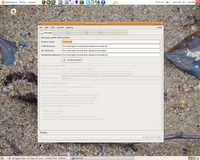 The first was "DVD::RIP". It's interface was confusing and I had trouble finding the setting I wanted to change. I couldn't tell if I was ripping the whole DVD or just a single file. But hey, I'll try it. I changed the settings I needed then started the process. I got one frame in ten minutes and my DVD was locked. I had to reset the box to get the disc out. Well I figured that the DRM got me again so I got out one of my very early DVDs, "Dark City", and tried again. NOPE. Lockup, again. Ok, this is a new OS for me and maybe it was just the program I was using so I checked the built-in "Add/Remove Applications" and the very first app I saw was ACID RIP.
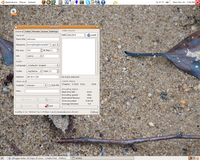 ACID RIP: It's interface was complex but understandable. Everything was there, I could pick my final format, bit rates and max file size. I put my DVD in and changed a few setting. I left most everything default except the output file type, I changed this to Xvid. This setting is under the Video Tab. The other settings here are LAVC, COPY, RAW, NUV, VFW, QTVIDEO, LIBDV, X264. Well I wanted something compatible with MS Windows too, so I chose the XVID becasue I had seen it on MS Windows and know it works. Once I made my changes I pressed the START button. The DVD spun, a status bar moved, the bit rate counter moved, the Frames Per Minute showed about 10 and the hard drive spun.
I could tell it was doing something! I looked at the ESTIMATED TIME TO COMPLETE and it said 52 minutes. hmm... 52 minutes for a 22 minute clip. That's well over what I'm use to. This is a 16X Lite-On DVD +/- Burner. On my MS laptop with a 8X burner, I could do a whole 2 hour DVD in 52 minutes! And don't tell me "your recoding it too" because my MS Laptop does that too and in under an hour. So at this rate a whole 2 hour DVD would take about 300 minutes? FIVE HOURS to rip a DVD (not counting burning time)? This is a 2.4ghz P4 with 512mbs ram and a 16X DVD. This is way too slow but I guess it worked.
BTW the Video did look good and is in a NON-DRM AVI format that I can watch where and when I want on whatever I choose. No pirating, no file sharing, just my DVD on my laptop without having to take my DVD with me.
ACID DVD: It ran slow for me but it worked.
NOTE: Turn off any screen savers, this will help some with the speed.
p.s. I took the background photo on Saturday, Nov 18, 2006, at Audra State Park, WV, but it could have been any wet pile of sand :-)
 The first was "DVD::RIP". It's interface was confusing and I had trouble finding the setting I wanted to change. I couldn't tell if I was ripping the whole DVD or just a single file. But hey, I'll try it. I changed the settings I needed then started the process. I got one frame in ten minutes and my DVD was locked. I had to reset the box to get the disc out. Well I figured that the DRM got me again so I got out one of my very early DVDs, "Dark City", and tried again. NOPE. Lockup, again. Ok, this is a new OS for me and maybe it was just the program I was using so I checked the built-in "Add/Remove Applications" and the very first app I saw was ACID RIP.
 ACID RIP: It's interface was complex but understandable. Everything was there, I could pick my final format, bit rates and max file size. I put my DVD in and changed a few setting. I left most everything default except the output file type, I changed this to Xvid. This setting is under the Video Tab. The other settings here are LAVC, COPY, RAW, NUV, VFW, QTVIDEO, LIBDV, X264. Well I wanted something compatible with MS Windows too, so I chose the XVID becasue I had seen it on MS Windows and know it works. Once I made my changes I pressed the START button. The DVD spun, a status bar moved, the bit rate counter moved, the Frames Per Minute showed about 10 and the hard drive spun.
I could tell it was doing something! I looked at the ESTIMATED TIME TO COMPLETE and it said 52 minutes. hmm... 52 minutes for a 22 minute clip. That's well over what I'm use to. This is a 16X Lite-On DVD +/- Burner. On my MS laptop with a 8X burner, I could do a whole 2 hour DVD in 52 minutes! And don't tell me "your recoding it too" because my MS Laptop does that too and in under an hour. So at this rate a whole 2 hour DVD would take about 300 minutes? FIVE HOURS to rip a DVD (not counting burning time)? This is a 2.4ghz P4 with 512mbs ram and a 16X DVD. This is way too slow but I guess it worked.
BTW the Video did look good and is in a NON-DRM AVI format that I can watch where and when I want on whatever I choose. No pirating, no file sharing, just my DVD on my laptop without having to take my DVD with me.
ACID DVD: It ran slow for me but it worked.
NOTE: Turn off any screen savers, this will help some with the speed.
p.s. I took the background photo on Saturday, Nov 18, 2006, at Audra State Park, WV, but it could have been any wet pile of sand :-)
Got Busy
I got kinda busy last week and didn't get much done. I'm off from work the rest of this week so I will be posting more. I drug out a Cannon Scanner, and an HP 1200 printer. I will hook them up and test them before Friday. I have not removed Linux from my laptop yet and I plan on giving wireless another go. I am using WEP encryption and I think that is what is keeping the DLink card from working. I noticed that the laptop had a Nvidia Go graphics card in it so I am going to try the Linux Nvidia drivers and see if that fixes my stutter problem.
I need to see if FireWire is working on the laptop too. If it is I will try the Samsung camcorder again using firewire DV instead of the priority Samsung divx codec.
I've created a second user account on this box to see how linux/Ubuntu handles multiple accounts. Tonight, I'm going to setup a couple of shares and see how well another linux box will connect to it. (Laptop to desktop) Also on the agenda is a DVD rip and burn (backup).
I'll let you know how it goes.
I need to see if FireWire is working on the laptop too. If it is I will try the Samsung camcorder again using firewire DV instead of the priority Samsung divx codec.
I've created a second user account on this box to see how linux/Ubuntu handles multiple accounts. Tonight, I'm going to setup a couple of shares and see how well another linux box will connect to it. (Laptop to desktop) Also on the agenda is a DVD rip and burn (backup).
I'll let you know how it goes.
Friday, November 17, 2006
Hit a Wall
 I think I have hit a wall with Ubuntu. I have made it 17 days but I'm running out of things to try. I have given up on WIRELESS NETWORKING for now and VPN ACCESS is a total loss (I can't find my needed VPN Client).
The things I have left that I want to try are Linux to Linux and Windows to Linux Networking but this will require some amount of research. I want to get a USB Scanner working and a USB Printer. I am going to play with some video editing and I want to try DVD ripping and buring.
Other things I have done: I've got full internet access thanks to Firefox 2.0, Email with Evolutions (all PIM function), Cell Phone access through the USB Cable, Digital Camera access, and all the removable media item I need. Open Office 2.x handles all my word processing, spreadsheet and slide show needs. Rythmbox works great for my audio needs and mPlayer does video pretty well. I've found a few surprises too, VYM (View Your Mind), I didn't even know something like this was out there (I'm searching for a MS Windows version for work).
The latest piece of software I installed was SKYPE, it's a very nice voice chat, IP Telephone. I haven't used it much but it works well and I like it.
On the photo editing front, I can use GIMP but I as I said, I'm a Photoshop guy and nothing will change that. With the photo viewers and organizers they are all pretty good and easy to use but nothing special.
I am comfortable using Ubuntu Linux with Gnome but once the windows disappear and I'm left at the command line, I'm at the mercy of other what others have written and just blindly type what they tell me too. I don't like not knowing what the commands I type in do.
Wednesday, November 15, 2006
Week Two Complete
It's been two weeks of no MS Windows and I'm doing just fine. So far there are just two things that I really miss from MS Windows, VPN access to work and Photoshop. I could, with time, learn GIMP enough to get by but "getting by" isn't what I want in a photo editor. Let's face it, I would only be happy if I could get Photoshop to work on Linux. With VPN, I need Watchguard software client for Linux. It might be out there but I can't find it. Without it I can't get to my work from home.
Linux on a Laptop. I have not had any luck getting my wireless network cards working on Ubuntu. This is a show stopper. I will be removing Linux from the laptop. I hate this but in this day and age, a laptop without wireless is not worth having. I have found some articles on line with hints and tips for fixing the problems I'm having but none work for me or the article is over my head for my level of Linux knowledge. The second problem I'm having with the laptop is the 1.5 second delay of mouse movements when opening windows. This made my laptop stutter. I could have lived with this but the wireless problem I can't accept.
USB support in Ubuntu is very good so far. Hardware support is good, but when you have problems there is never an easy answer. Rewrite the whole kernel, modify some "code", or buy a part that is compatible. These are your choices.
Software selection is pretty good. If you can think of it, you can find a program that will do it for you.
The built-in add/remove applications feature I like a lot. The ability to add other package installers is great. The problem starts when you have to download zipped files, extract them, get the dependencies too, and blah, blah, blah. What I'm trying to say is that if you can't find the program you want in a "package" it gets hard fast.
Over all I like Ubuntu Linux but I'm starting to see some of it's short comings. I have come to think of this Linux Box as more like a MS Windows 98 machine. MS Windows 98 ran a GUI (graphical user interface) over DOS (command line). If you wanted to do anything powerful you had to go to a DOS session to do it. Ubuntu is like this. The windows part is just "dressing" over the powerful command line. The real power lays in the command line. The problem is that most people don't like working with the command line so a windows "dress" was put over this command line. I think this duality is keeping linux out of the mainstream. Both MS Windows and Apple do almost everything through the GUI. Both REQUIRE very little command line action. Linux on the other hand REQUIRES command line access. You can not use LINUX without it.
I find myself comparing Linux to MS Windows. I've wonder why I do this. I have come to realize that this is because MS Windows is STANDARD. There are may things like this, the iPod is the STANDARD in mp3 players, Apple is the STANDARD in User Interfaces and TIVO is the STANDARD in D.V.R.s. These are just some examples, any products developed in those categories are compared to these items. Why are these items STANDARDs? Because they do what they do very well. MS Windows does not do everything right but it does do everything. Vary rarely do you to check computability list when buying hardware for MS Windows. There are usually three varieties of every piece of software for MS Windows (Commercial, Shareware, and Freeware) and they work with almost any combination of hardware. Is it pretty? No Is it cheap? No. IT JUST PLAIN WORKS EASILY.
With all of that said I don't dislike Linux. It's different and it has gotten something right. It's stable, it's fast (command line), and its secure. Those are great things to be, but it's just not user friendly yet. As I said, I think of it as MS Windows 98. It had a pretty windows "dress" on but underneath its still DOS (Terminal).
At Two Weeks of Only Ubuntu Linux, I give it a 7 out of 10.
Linux on a Laptop. I have not had any luck getting my wireless network cards working on Ubuntu. This is a show stopper. I will be removing Linux from the laptop. I hate this but in this day and age, a laptop without wireless is not worth having. I have found some articles on line with hints and tips for fixing the problems I'm having but none work for me or the article is over my head for my level of Linux knowledge. The second problem I'm having with the laptop is the 1.5 second delay of mouse movements when opening windows. This made my laptop stutter. I could have lived with this but the wireless problem I can't accept.
USB support in Ubuntu is very good so far. Hardware support is good, but when you have problems there is never an easy answer. Rewrite the whole kernel, modify some "code", or buy a part that is compatible. These are your choices.
Software selection is pretty good. If you can think of it, you can find a program that will do it for you.
The built-in add/remove applications feature I like a lot. The ability to add other package installers is great. The problem starts when you have to download zipped files, extract them, get the dependencies too, and blah, blah, blah. What I'm trying to say is that if you can't find the program you want in a "package" it gets hard fast.
Over all I like Ubuntu Linux but I'm starting to see some of it's short comings. I have come to think of this Linux Box as more like a MS Windows 98 machine. MS Windows 98 ran a GUI (graphical user interface) over DOS (command line). If you wanted to do anything powerful you had to go to a DOS session to do it. Ubuntu is like this. The windows part is just "dressing" over the powerful command line. The real power lays in the command line. The problem is that most people don't like working with the command line so a windows "dress" was put over this command line. I think this duality is keeping linux out of the mainstream. Both MS Windows and Apple do almost everything through the GUI. Both REQUIRE very little command line action. Linux on the other hand REQUIRES command line access. You can not use LINUX without it.
I find myself comparing Linux to MS Windows. I've wonder why I do this. I have come to realize that this is because MS Windows is STANDARD. There are may things like this, the iPod is the STANDARD in mp3 players, Apple is the STANDARD in User Interfaces and TIVO is the STANDARD in D.V.R.s. These are just some examples, any products developed in those categories are compared to these items. Why are these items STANDARDs? Because they do what they do very well. MS Windows does not do everything right but it does do everything. Vary rarely do you to check computability list when buying hardware for MS Windows. There are usually three varieties of every piece of software for MS Windows (Commercial, Shareware, and Freeware) and they work with almost any combination of hardware. Is it pretty? No Is it cheap? No. IT JUST PLAIN WORKS EASILY.
With all of that said I don't dislike Linux. It's different and it has gotten something right. It's stable, it's fast (command line), and its secure. Those are great things to be, but it's just not user friendly yet. As I said, I think of it as MS Windows 98. It had a pretty windows "dress" on but underneath its still DOS (Terminal).
At Two Weeks of Only Ubuntu Linux, I give it a 7 out of 10.
Subscribe to:
Posts (Atom)